

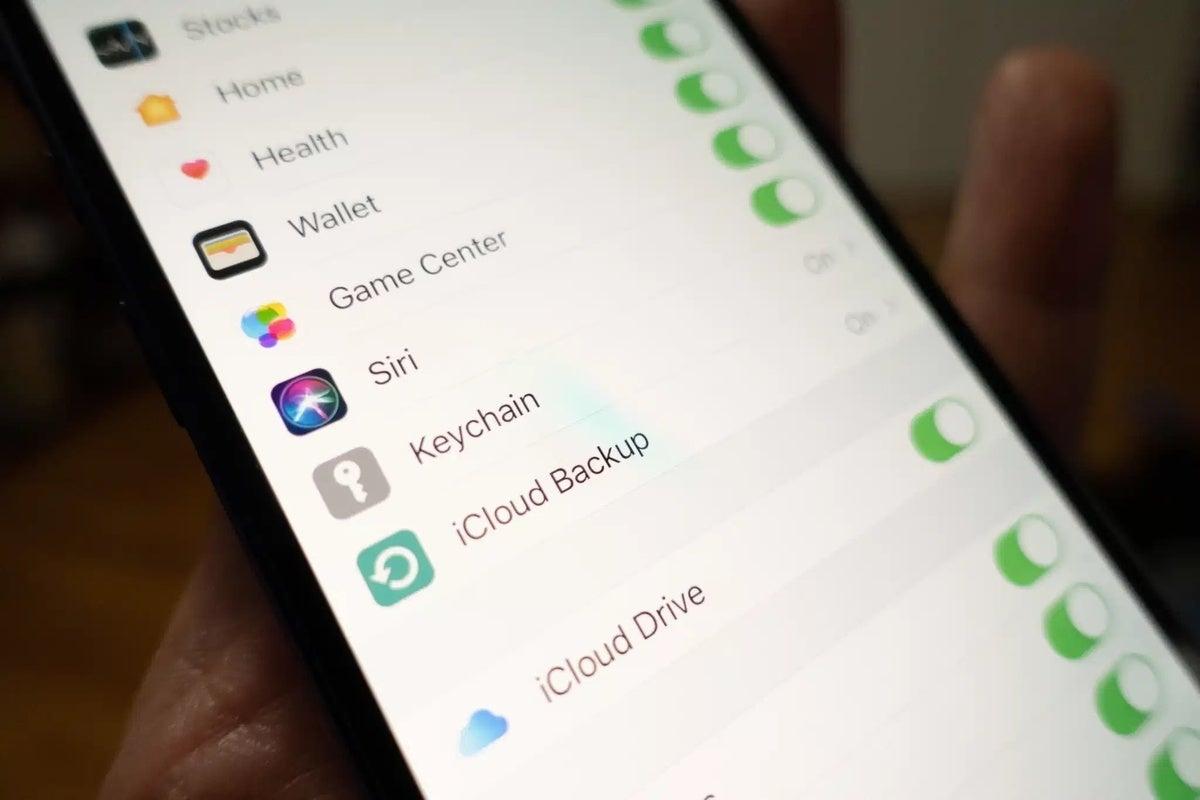
The iCloud login process provides plenty of value without requiring a great deal of thought. Here’s what do need to know about iCloud login and how to get the most from it.
What is iCloud login?
First, a swift recap of the basic concepts:
Apple’s iCloud powers numerous apps and services and acts as a glue to securely enable powerful features such as document and data syncing across your Apple devices with iCloud Drive, Apple Pay and more.
The iCloud System Status page is the best way to understand the extent to which iCloud supports Apple’s ecosystem. Look and you’ll find 65 services listed there. These include many you may never have heard of before, some you may not use, and a variety of services you may already rely on at work, such as the Device Enrollment and Volume Purchase programs.
iCloud login is the key to this part of the Apple Garden.
When you are logged into iCloud on a device using your Apple ID, (and this includes some non-Apple devices when using specific iCloud-supported apps or services, such as Music), you can access some or all these services.
Third-party developers also use iCloud, thanks to Apple’s CloudKit framework and tools they use to build apps that sync across devices.
Underpinning all of this is your Apple ID and iCloud login.
Apple ID and iCloud login
Your Apple ID is the key to iCloud and all Apple’s services.
When you sign into a device with your Apple ID, you also sign into iCloud. It’s really important to protect that information, which is why your Apple ID should be protected with a complex alphanumeric passcode you can remember (and must also be protected by two-factor authentication).
You can change your Apple ID and manage your account using the Apple ID account website.
How to login to iCloud
- On Apple devices: You can login to iCloud on an iPhone, iPad, Mac, or Apple TV. You need to be signed in using the same Apple ID on all your devices to use iCloud to sync data and services across all of them. If you keep two separate Apple IDs, you cannot easily share them both on one device as the system’s philosophy is to protect one user.
- On Windows: You can also access some iCloud information and Apple services on a Windows PC using the iCloud for Windows app. You can access a limited number of services (Music, TV+) on other devices using specific apps.
- Online: Finally, you can also access data stored on iCloud online through a standards-compliant browser at iCloud.com. There you can access Mail, Contacts, Calendar, Photos, your iCloud Drive data, Notes, Reminders, and use Find My, Pages, Numbers and Keynote. You can also manage various Settings, manage Family Sharing and a variety of other tasks via iCloud online. Therefore, it is important to ensure you use a strong passcode to secure your account.
- How to login iCloud on Android: The only way to access iCloud from an Android device is to use a browser to access iCloud online. You can’t sync apps this way.
Where is iCloud login?
iCloud login should happen automatically when you enter your Apple ID as you setup your Apple device. If for some reason you fail to set the system up then, or plan to change your device to work with another Apple ID, you will find iCloud in Settings (iOS, iPad OS) or System Preferences (Mac). You should create a backup first.
- On Mac: Tap Apple ID>Overview>Sign Out (or Sign In) and follow the steps provided.
- On iPhone/iPad: Tap Apple ID, scroll to the bottom and tap Sign Out and follow the steps provided to sign in with a different Apple ID.
When signing out from iCloud you will lose all the data stored on the device, but it should be maintained in the iCloud account you have been using.
How to merge Apple IDs
If you have multiple Apple ID’s, you are out of luck. Apple puts it quite brutally, telling us: “If you have multiple Apple IDs, you can’t merge them.”
However, Apple does enable Mobile Device Management solutions to put data separation in place to secure business data on personal devices (see below).
How do I see who has logged into my iCloud?
If you suspect someone is logged into your iCloud account from a device that does not belong to you, you should visit Apple ID. Sign in and then click Devices. You will now see all the devices logged into that iCloud account.
You can also see this in iPhone/iPad in Settings>Account Name where you will find a list of all your devices; on a Mac, in System Preferences>Apple ID, scroll down the list at the left. You can also check which devices are logged in using iCloud for Windows in Account Details>Manage Apple ID.
Apple does warn you when new sign-ins take place: If you have two-factor authentication enabled anyone attempting access to your account will require a verification code provided via one of your trusted devices or phone numbers. In the event someone does login to your iCloud account, you should receive an email telling you this.
The company also has various access controls in place to protect iCloud for Windows.
What is iCloud Data Recovery?
You may have heard of iCloud Data Recovery. It’s a recently introduced Apple solution to help people who have lost access to their account for some reason. It lets you regain access to much of your data, but can’t restore your Keychain, Screen Time or Health data, as that information is encrypted. Even Apple can’t get to it.
You’ll find iCloud Data Recovery Service in the Account Recovery section under Password & Security. You should choose to either enable your Recovery Key or assign a Recovery Contact.
In the latter scenario, that contact will be provided with a code with which you can access and unlock your account. The Recovery Key option provides you with a unique key you should write down and store in a bank vault or somewhere, as anyone with access to it can grab your account. For best results, add someone you trust to act as a recovery contact, though you can also set up a recovery key.
iCloud data separation
If you use a work device, or have a personal device that has been enrolled (usually via Apple Business or Apple School Manager) and is then controlled by a Mobile Device Management system like those provided by Apple Business Essentials, Jamf, Kandji, Mosyle and others, it may be possible to separate personal from work-related data. This process takes place during the user enrollment process, when IT can apply cryptographic separation to keep work and personal data apart. It means that if an employee leaves the company the former employer can delete any work-related data from the device without impacting the user’s own information.
This system can also be automated, which is the way kiosks and shared iPad fleets in schools can be returned to factory fresh in between use.
Do you have further questions about or insights to share concerning iCloud or iCloud login? Please let me know.
Please follow me on Twitter, or join me in the AppleHolic’s bar & grill and Apple Discussions groups on MeWe.